Using Tags in TrialLine

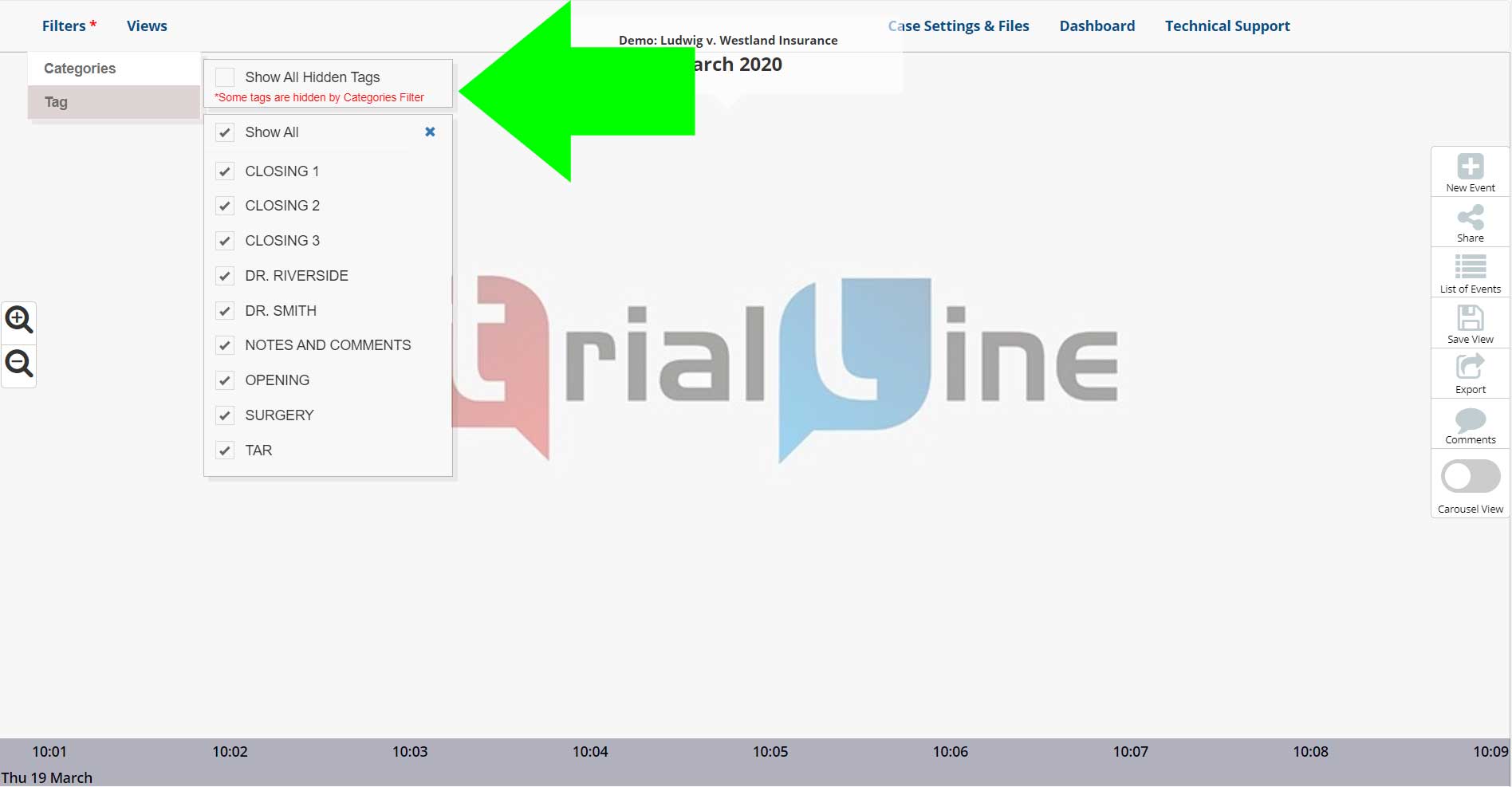
TrialLine users have the ability to ‘tag’ the events on their legal case timeline, and those tags can then be used in the filtering system to control which events are being displayed on the TrialLine at any given time.

This filtering system allows users to create specific ‘views’ by combining different ‘category’ and ‘tag’ filters, which can then be used to communicate specific and important details about the case.

This enables users to get very granular with their data, and have a great deal of control over how the facts in the case are presented, and this can make the communication of important information more efficient and compelling.

Read more

How to Create Events in TrialLine

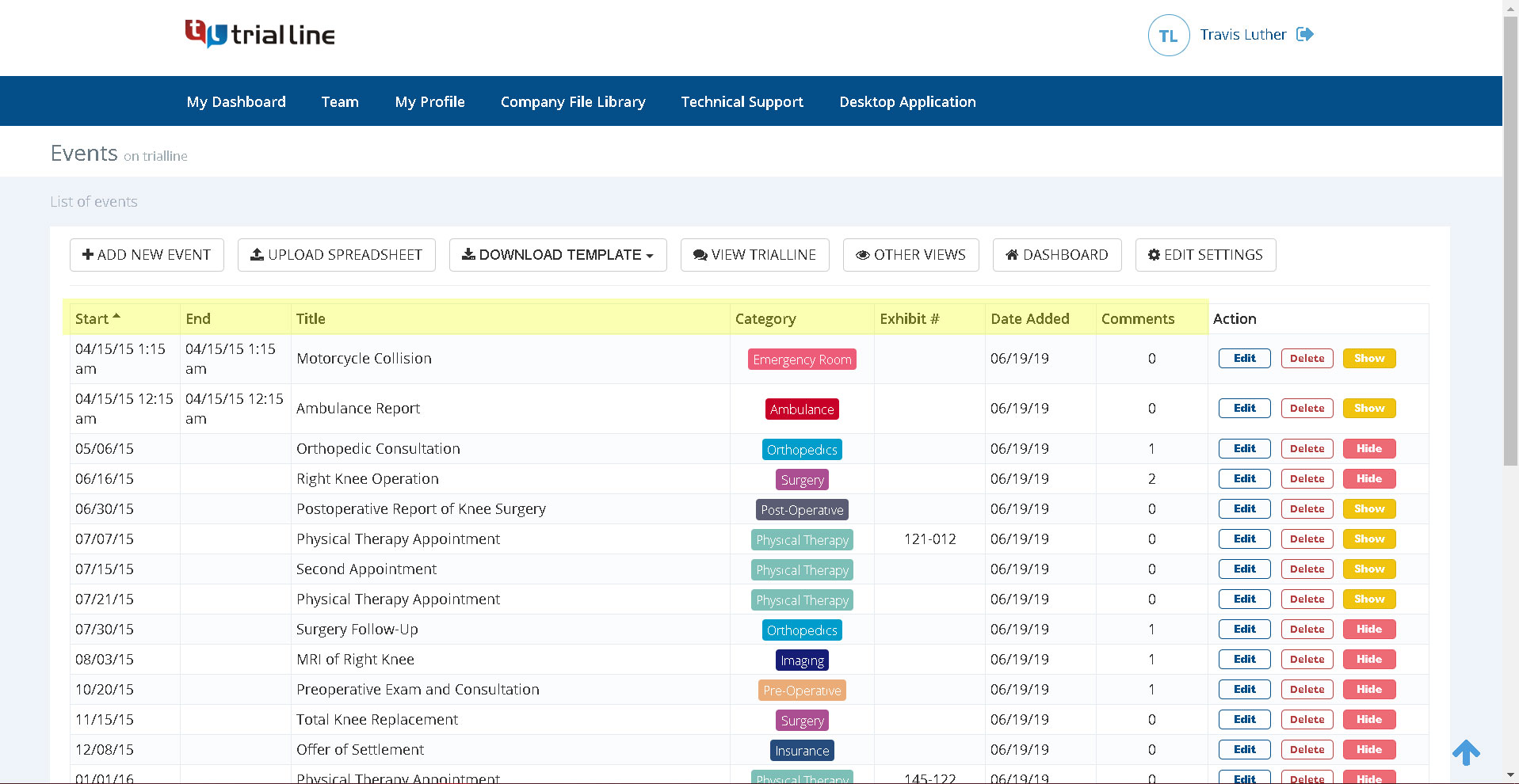
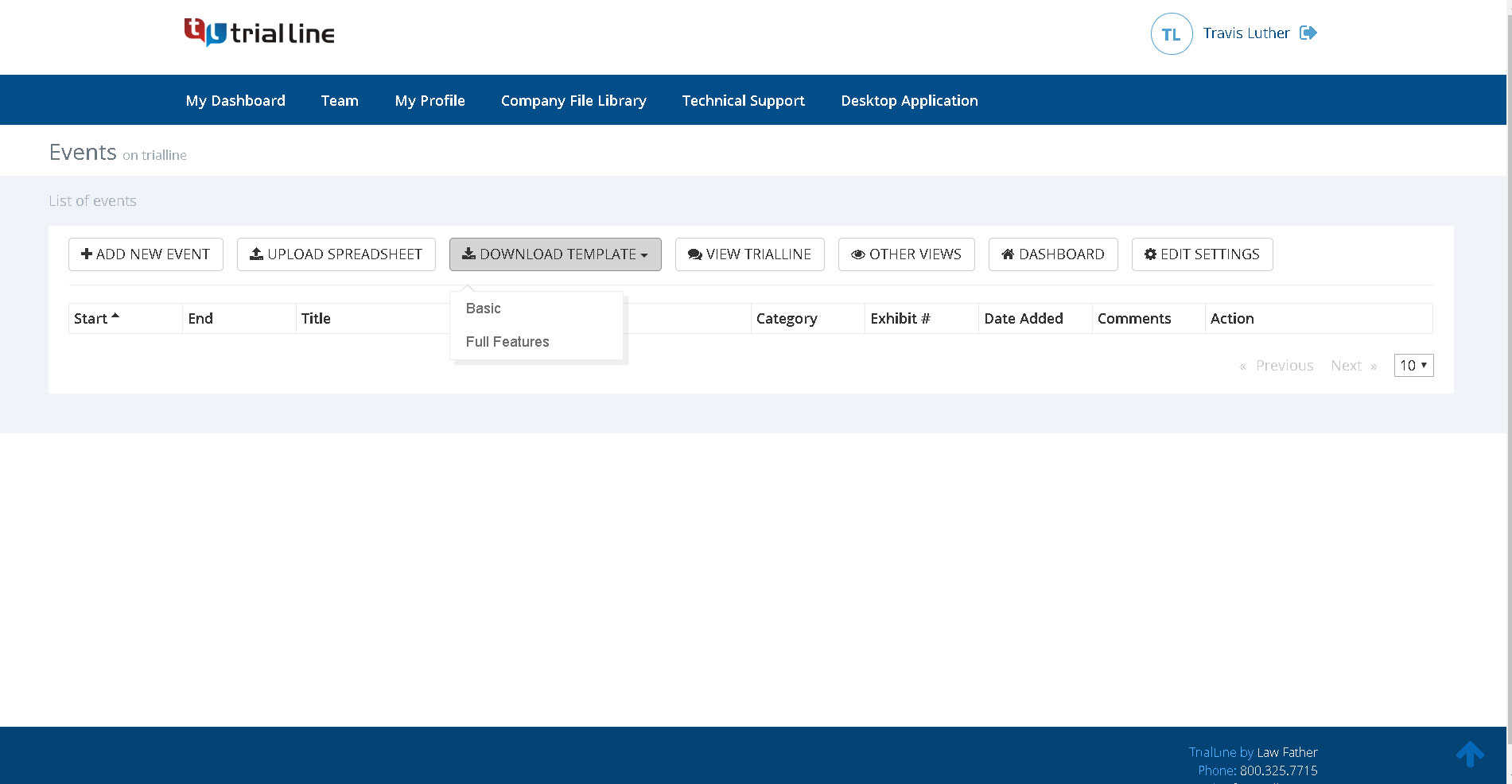
Once you’ve created a new TrialLine, the next step is to start adding events to it. In this tutorial, we’ll show you how to create new events, explain what information can be included in each event, and also show you how to attach files and supporting documents directly to your events.

Read more

How to Zoom In and Out of Your TrialLine

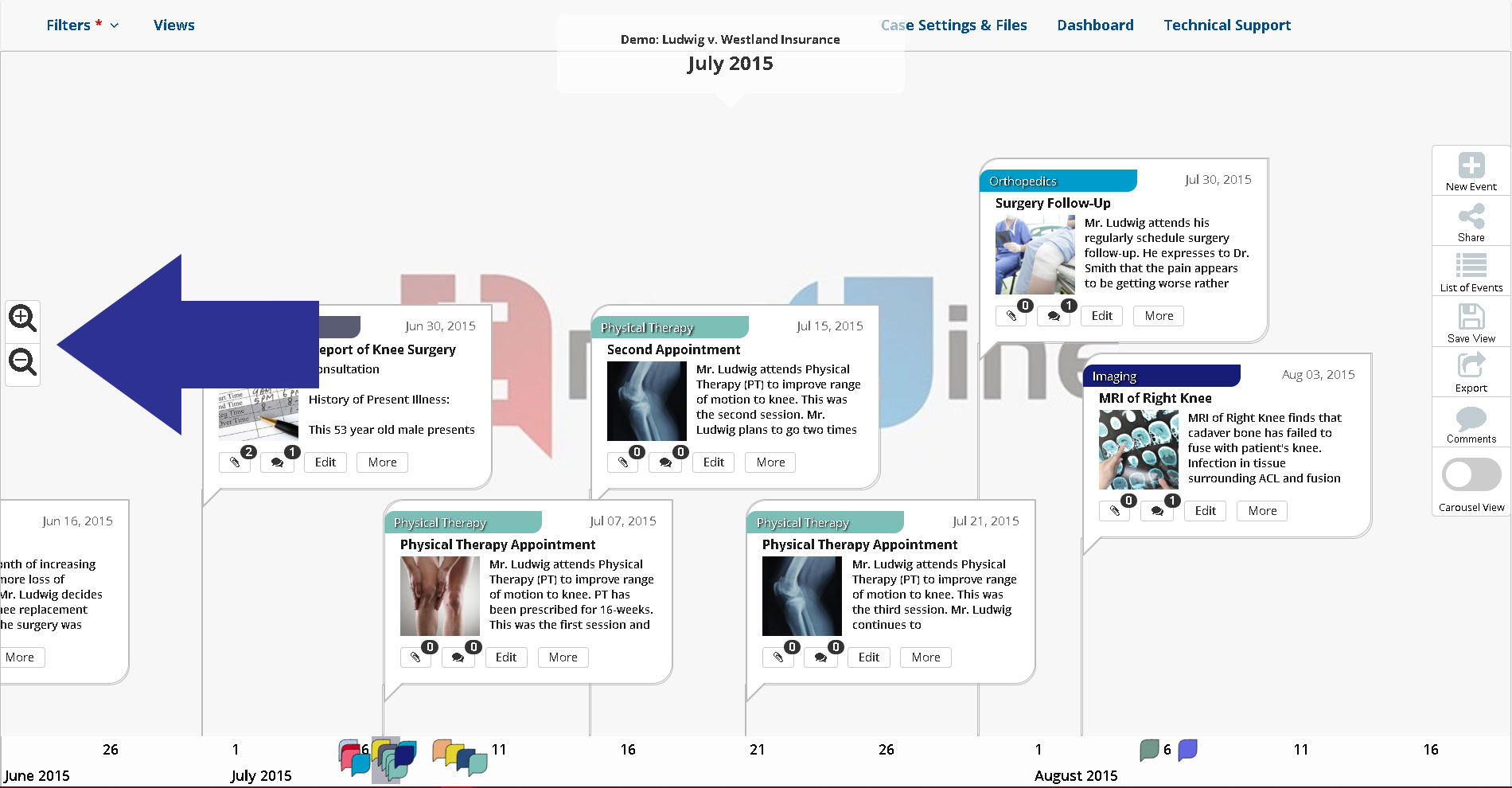
In TrialLine, the ‘Rendered View’ is a responsive view of your case timeline. That means the placement of the individual events and how they display, changes and responds depending on your zoom level.

As you zoom into your TrialLine, the events spread themselves out and move away from each other. As you zoom out of your TrialLine, the events move closer together. This enables you to change the focus of your timeline as needed, zooming in to focus on a particular event or zooming out to see multiple events at one time, and to see how far apart in time the events occurred, in relation to one another.

Read more

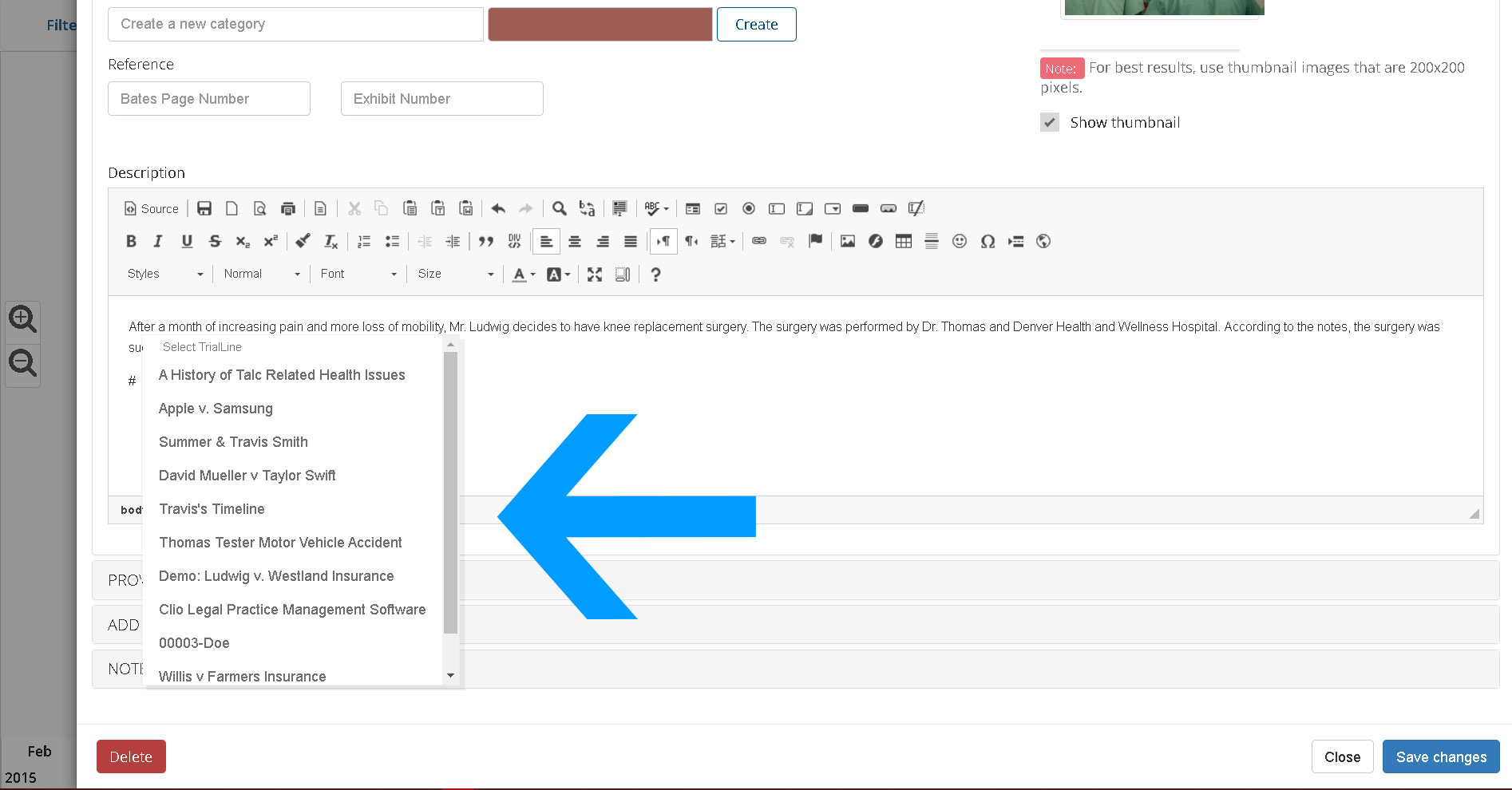
Linking to a Secondary TrialLine from Within a Primary TrialLine

TrialLine users are able to link to secondary TrialLines in their accounts, from within a specific primary TrialLine.  This is helpful because it allows users to easily access information, documents and events on a secondary TrialLine that may be related to the primary TrialLine, but that covers a separate aspect of the case.

Read more

How to Set Event Image Thumbnails in TrialLine

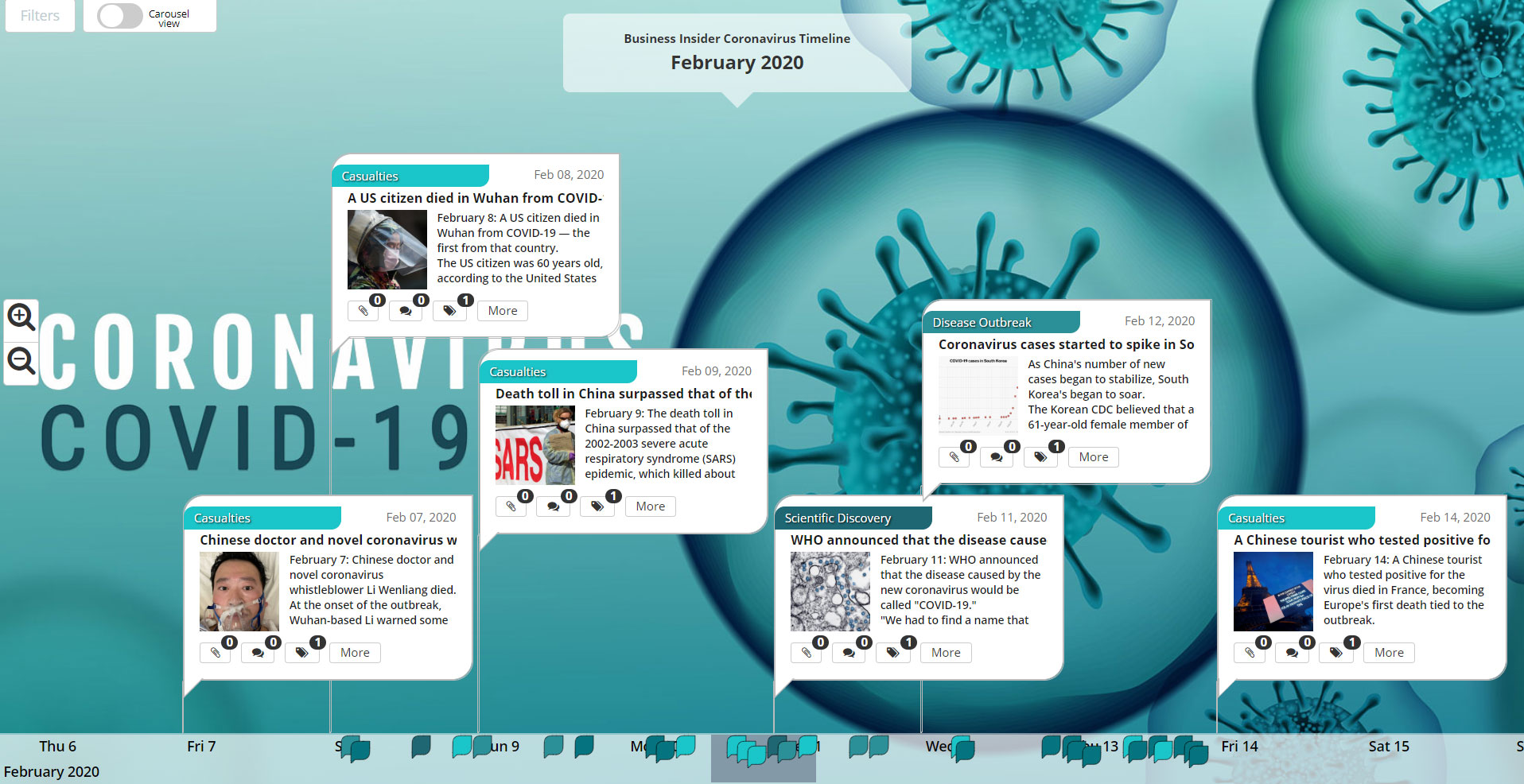
TrialLine enables you to set image thumbnails for each event on your legal case timeline. These image thumbnails can quickly communicate general information about your events. Image thumbnails show up in the individual event bubbles, underneath the category and event title, and to the left of the event description:

Read more

How Relationship Timelines Help Divorce Attorneys Win for Their Clients

man and woman discussing divorce | relationship timeline for divorceAs family law attorneys know all too well, once they and their clients enter the courtroom to litigate a divorce, the power moves out of their hands and into the court’s. The court will be the ones to make major decisions about that client’s family and future.

This can be a very daunting prospect in divorce cases because, as the old cliche goes, there’s two sides to every story. And if a relationship is ending in divorce, those two sides of the story are likely to be very contentious.  Having to depend on a judge’s interpretation of two different stories can be an intimidating proposition, even for very experienced divorce attorneys, and this is when having a relationship timeline for your case can really mean the difference between a win and a loss for that client.

Read more